Product Activation
ChangeGear can now be activated via the ChangeGear Web Application. The functionality is identical to what is provided via the ChangeGear Desktop Client (DTC) Application.
Once the ChangeGear installation is complete, opening the ChangeGear Web Application via the windows start menu will display the following screen from which license activation process begins.
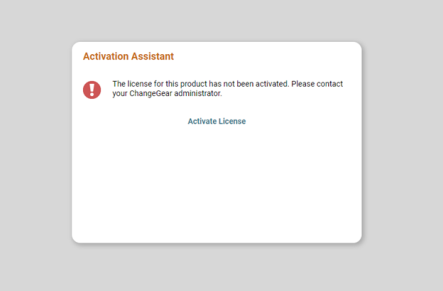
Click Activate License, which will redirect you to the product activation web page.
Note: The Activate License option will only be available for Administrators. When license expires, the option would be Upgrade License.
For ChangeGear online activation, enter the activation code you received and click Next. The Activation Assistant activates the product, applies the license, and refreshes the application windows for the changes to take effect.
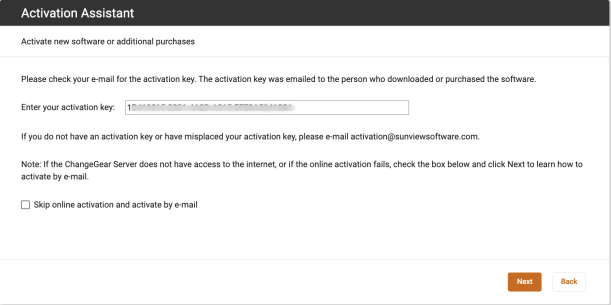
For ChangeGear offline activation, check the Skip online activation and activate by e-mail checkbox and click Next. Copy and email the information shown in the screen to the email address activation@sunviewsoftware.com as seen below.
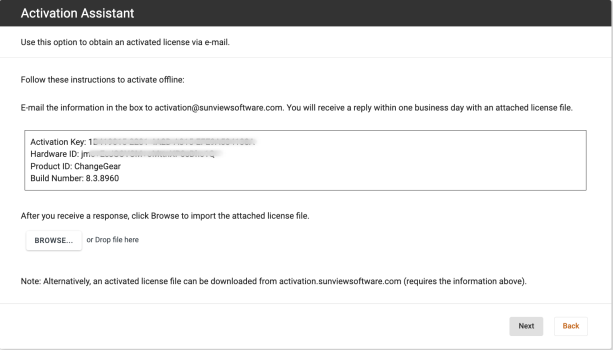
After you receive the license file, upload the license file using either the Browse or the drag and drop option and click Next.
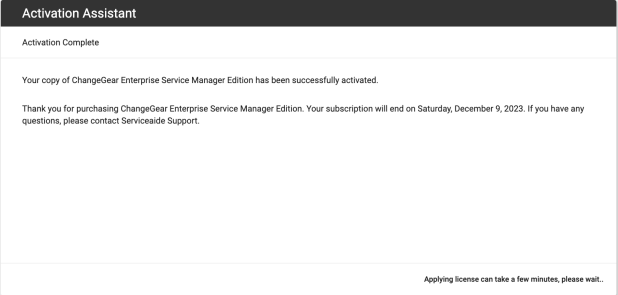
The Activation Assistant activates the product and applies the license and refreshes the application windows for the changes to take effect.
Upgrade the license or reactivate ChangeGear
Open the ChangeGear Web Application and go to the Web Administration module. On the Dashboard page, hover over the Activation Key, click on the pencil icon in the License card as shown below.
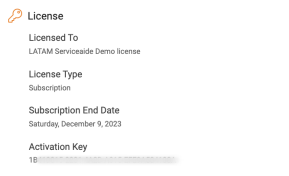
This will take you to the Activation Assistant. Enter the activation code or upload the license file, which then activates the product as mentioned in the section above.