MIB Importer
In Design Studio > Asset Discovery, you can import MIBs (Management Information Base) into scan data models to collect data from network devices.
An MIB is a hierarchical database containing configuration and management data for SNMP devices, organized in the form of data objects. SNMP management systems use MIB files to interpret messages from devices, with each object identified by an Object Identifier (OID).
SNMP OIDs help map and classify devices during discovery along with enhanced data collection from the devices. Devices must be SNMP enabled for this to happen.
Key Features
-
Online MIB Library - Access to an online MIB library, allowing you to leverage various MIBs for better SNMP-based device management.
-
Import MIB Files - Import your own device MIB files if it is not found in the ChangeGear/ADE MIB Online library. Supported file types include .mib and .txt.
-
Parse and Explore Data - Once the file is imported, the MIB objects are displayed in a tree structure. Users can expand the nodes to view and explore specific OIDs.
-
Select and Associate OIDs - Users can select OIDs from the tree and add them to the target Asset Types.
To Import MIBs:
- Navigate to Asset Discovery > MIB Importer.
-
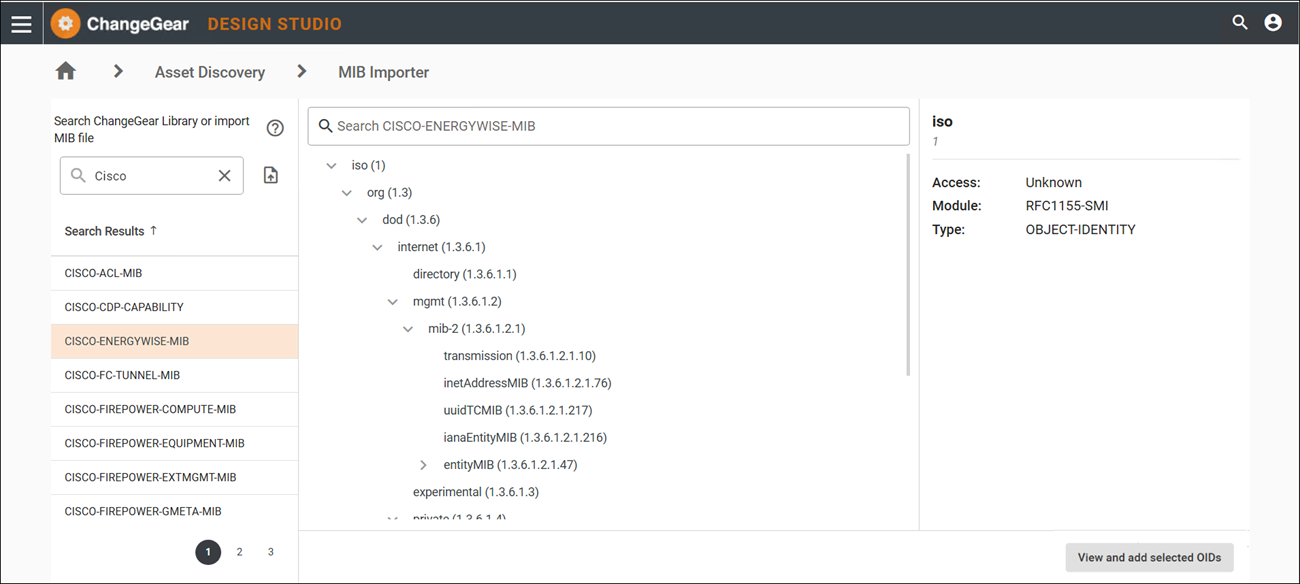
First, search the ChangeGear Library for the required MIB file.
-
If the file exists in the library, click on it to load its details.
-
If the file is unavailable, import it manually if you have one for your network device.
-
Click Import MIB File
 .
. -
Drag and drop the MIB file or browse your computer for the file. Click Open.
Note: You can import up to 10 MIB files at once. Supported formats include .mib and .txt.
-
After import, the system automatically parses the MIB file and displays it as a tree view. The tree structure organizes all available data points (OIDs) into parent and child nodes.
Exploring the MIB Tree
-
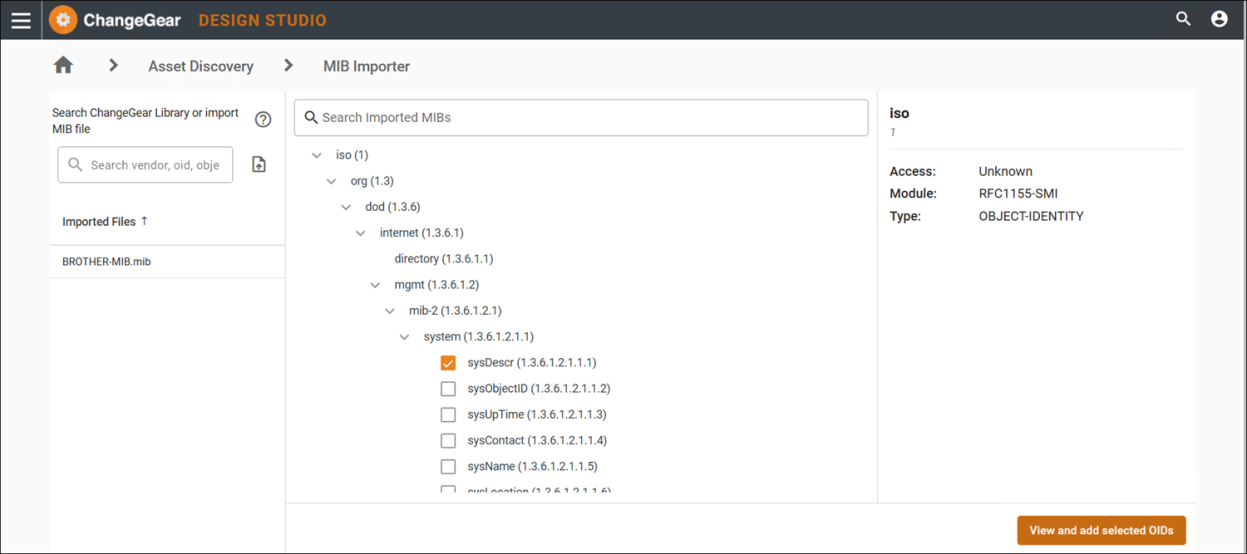
Click on any node to expand it and view details about that data point.
-
Use the Search bar above the tree to help find specific OIDs or descriptions within the file.
-
Check the boxes next to the OIDs to select the ones you want to include in the target Asset type data model.
-
Click the View and add selected OIDs option to review your selected OIDs.
-
The selected OIDs are displayed where you can review or remove them as needed.
-
After selecting OIDs, you can assign them to specific target resources or asset types. This helps the system know which OIDs to gather information from during Asset discovery.
Note: You cannot select all OIDs at once; each OID must be selected individually.
To add OIDs to a data model:
-
Once OIDs are selected, use the Add to Data Model option to map selected OIDs to the desired data model.
-
Choose a target Asset Type from the drop-down. If needed, type to search.
-
Review the selected OIDs and associate them with the appropriate asset type or data model.
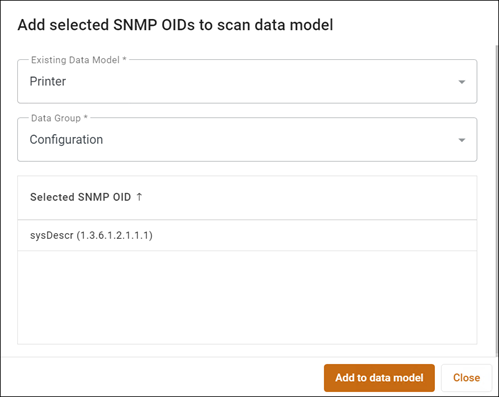
The selected OIDs are now linked to the data model and ready for use in the discovery process. With the updated SNMP rules, run a Discovery Scan using ADT.
Troubleshooting Errors
When working with MIB files, users may encounter certain errors. Below are some common issues and troubleshooting steps based on system behavior.
1. “File Could Not Be Parsed” Error Message - the file is not in a valid MIB format or there was an issue reading the file.
-
Ensure that the file is a valid MIB file and follows the correct MIB structure.
-
If the file is in a valid format but still cannot be parsed, try re-importing it or verifying that the file is not corrupted.
-
Check if the file requires dependent MIB files for successful parsing.
2. Unsupported File Types - the MIB imported is not a supported type (e.g., JSON, image files).
-
The file uploader will display an error if unsupported file types, like JSON or image files, are imported. These files will not be parsed.
-
Import only supported file types, such as .mib or .txt.
3. Only One Node Loads in the Tree View - the MIB file is missing information, preventing the full tree structure from loading.
-
If only one node appears and searches return no additional results, the file may be incomplete or missing key OIDs.
-
Recheck the MIB file to ensure all required OID information is included.
-
Import dependent MIB files as needed for a complete tree structure to load properly.
4. Search Function Returns No Results - missing or incomplete MIB data.
-
If the search function does not yield any results, verify that the uploaded MIB file contains the expected data.
-
Ensure that all necessary nodes and OIDs are present in the file. Missing data may cause the search to fail.
If the problem persists, further validation of the file or assistance from Support may be required. Reach out to support@serviceaide.com for assistance.