Searching for Tickets
ChangeGear employs two different methods of searching from the main grid – Search and Quick Search.
Search
The Search window allows you to search for any ticket in ChangeGear without leaving the module with which you are currently working. You can open tickets from the search window as if you were opening them directly from the module. Using the search window lets you navigate tickets without impacting the main grid.
To use the search window:
-
Navigate to a ticket module such as Incident or Problem.
-
Click the Search icon
 in the action bar. This opens the search window.
 -
Enter your search terms. Optionally, select the module that you wish to search.
-
Click Find to perform the search.
The results (if any) are listed in the grid beneath the module name.
Quick Search
The Quick Search function restricts the items displayed on the grid to only those items matching your search criteria in that module. By default, the Quick Search uses the commonly used fields – Summary, Description, and Ticket ID – to search for the tickets. You can use the downward-facing arrow by the search box to search on a different field.
After performing a quick search, the Clear Search icon allows you to clear the results of the search from the grid.
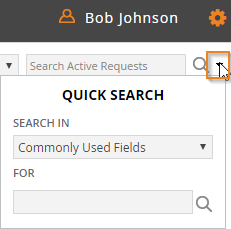
Search In - Click the arrow to view a list of variables to search tickets.
For - Type in the value you want to use for your search. For example, if you select Priority from the Search In list, type in a priority, such as Critical.