Tracking Time
ChangeGear allows you to record the amount of time spent working on a ticket. The Origin field specifies the source of the Incident. The Time Spent and Total Time fields track the total amount of time spent resolving the Incident. The amount of time spent on a ticket is tracked in the ticket's history records.
Tip: You may need to click
the group arrow  to show the Origin,
Time Spent, and Total Time
fields.
to show the Origin,
Time Spent, and Total Time
fields.
To track time spent on a ticket:
-
Open the ticket that you wish to track time for.
-
Click the clock button
 to begin tracking your time. When you are finished, click the clock
button again to stop tracking your time.
to begin tracking your time. When you are finished, click the clock
button again to stop tracking your time.- OR -
Enter your time spent by typing directly into the Time Spent field.
-
Click the add button
 to add your time to the ticket's total time.
To update the total time spent on a ticket:
-
After entering a value in the Time Spent field, click the add button
to add your time to the ticket's total time.- OR -
Enter the total time by typing directly into the Total Time field.
Important: if you manually enter a value into both the Time Spent and Total Time fields, ChangeGear will only save Time Spent.
Reporting on Tracked Time
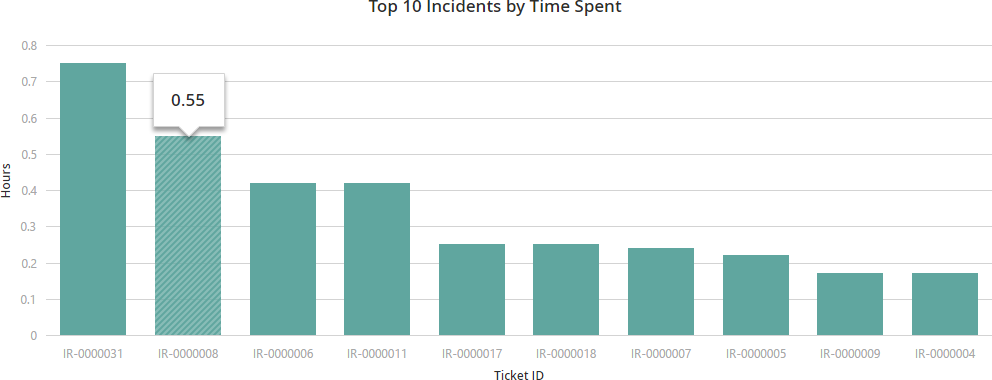
The total amount of time spent on a ticket is tracked in the Time Spent field. The ticket's history records also contain a log of changes to the Time Spent or Total Time fields. Additionally, ChangeGear provides reports showing the amount of time spent per ticket. These reports are available in the Reports module under All Incidents and Active Incidents.
-
Top 10 Incidents by Time Spent is a bar chart displaying the total number of hours spent on ten tickets organized from the most amount of time to the least amount of time.
-
Top 10 Incidents by Time Spent Last 7 Days is almost identical to Top 10 Incidents by Time Spent, but limited to the past seven days.