IP Credentials
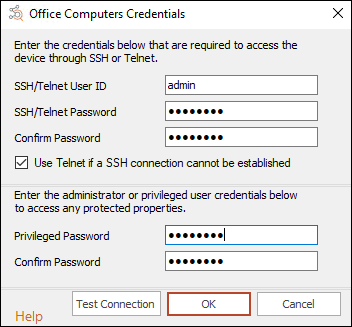
Use the IP Credentials dialog to store SSH, Telnet, or administrator credentials for devices discovered via IP range instead of AD.
To add credentials for an IP range:
-
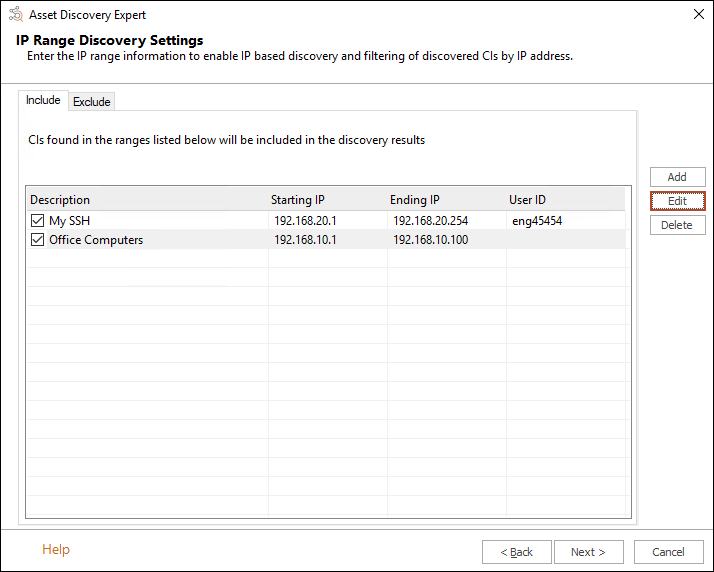
On the IP Range Discovery Settings dialog, click Add.
Note: If you want to add credentials to a pre-existing range, select the range and click Edit.
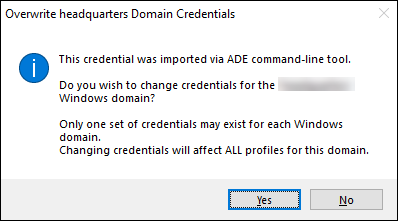
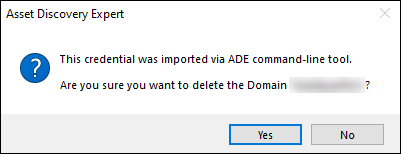
 Important: If you try editing or deleting credentials imported from the credentials store created via the command line, you'll receive a pop-up message alerting you that the credentials were imported via the ADE command line tool. This applies to all Discovery Techniques.
Pop-up if attempting to edit:
Pop-up if attempting to delete:
-
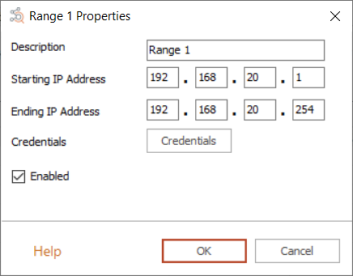
Enter a Description and the IP range in the Range Properties dialog.
-
Click the Credentials button. The IP Credentials dialog will display.
-
Enter any credentials needed for scanning devices in the IP range.
Note: You can validate the credentials you entered by clicking the Test Connection button. See IP Connection Test for more information.
-
Click OK.
-
Make sure the Enabled box is checked and click OK.
Note: You can use the Credentials Manager in the Administration module to manage all credentials used with the ADE.