Connecting to ChangeGear for Configurations and Import of CIs/Assets
The Asset Discovery Tool (ADT) integrates with ChangeGear Service to import Configuration Items (CIs) and assets into your CMDB or Asset modules.
Starting with the Great Barrier Reef release (2024), ADT will automatically use the latest configurations for SNMP classifications and data models (formerly called Detail Schemas) available on the ChangeGear Service.
This ensures that any updates made through the ChangeGear Web Interface, such as new data models or classifications, are applied during the discovery process. This mode of running discovery is known as Online Mode.
In some cases, you may need to run ADT in an environment where a connection to ChangeGear is unavailable. In these situations, ADT can be run in Offline Mode, where it will use the data models and configurations included during installation. To keep these configurations up to date with the ChangeGear Service, you can manually export the latest settings using the Export Manager in the ChangeGear Web Interface and replace them in your ADT installation.
Connect to ChangeGear in Online Mode:
-
After launching ADT, the introductory page displays.
-
To proceed, click Next. The Login dialog displays.
-
Select Connect to authenticate with ChangeGear using your credentials. If you wish to cancel the login process, click Cancel.
-
After a successful login, you will be redirected to the profile management page.
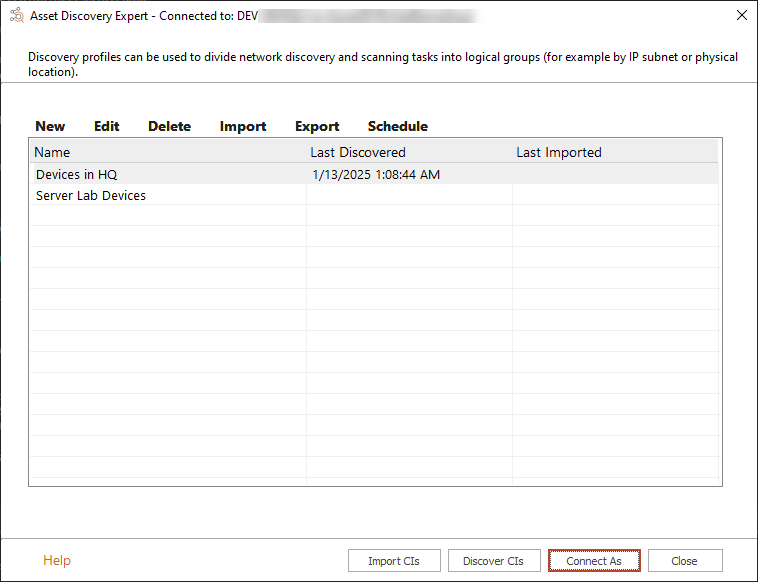
Here, you can manage discovery profiles and perform asset discovery tasks.
-
Use the options to create, edit, delete, or schedule discovery profiles.
-
Review the profiles listed, including their Name, Last Discovered date, and Last Imported date.
-
You can initiate a discovery process by selecting a profile and clicking Discover CIs....
-
If you need to switch user accounts, click Connect As... to log in with different credentials.
-
The Show Advanced Options checkbox provides access to more detailed configuration if needed. See Advanced Discovery Settings for more information.
-
Offline Mode
For scenarios where access to the ChangeGear server is unavailable, ADT allows you to operate in offline mode without connecting to the ChangeGear service. In this mode, ADT uses factory classifications and data models; however, any customizations must be imported manually into ADT.
Connect to ChangeGear in Offline Mode:
-
After launching ADT, the introductory page displays. Select Offline Mode to skip the ChangeGear connection process.
Note: When operating in offline mode, some features of ADE that require communication with ChangeGear, such as re-importing data back into ChangeGear, are unavailable. Any data collected in Offline Mode would need to be manually re-imported once an online connection is established.
-
The following message displays.
"Offline mode uses local configurations for discovery. Continue?"
This notification informs you that the discovery process will use the installed data models and classifications.
Click Yes to navigate to the profile management page. Click No to return to the introductory page.
-
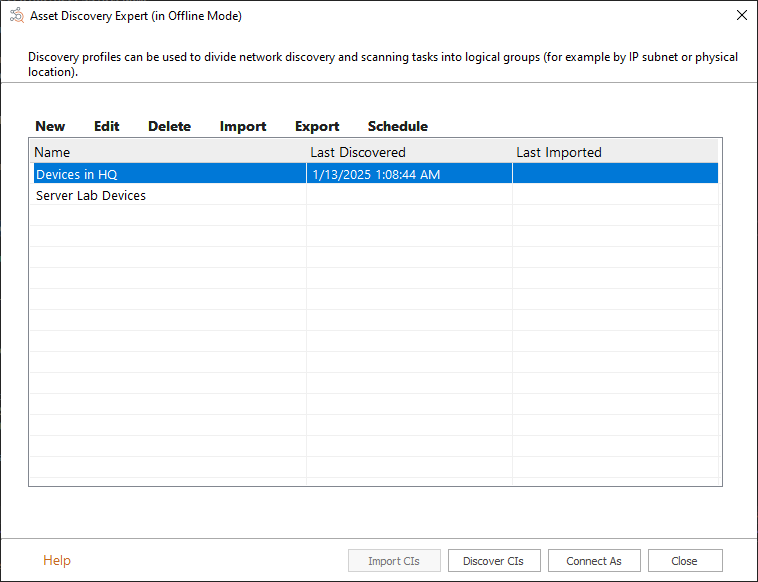
From the profile management page, you can create, edit, delete, or schedule discovery profiles as usual.
-
When ready, initiate a discovery process by selecting a profile and clicking Discover CIs....
-
After the scan is completed, the results are saved in a file called resources.xml, which contains discovered assets and their details, this must be used with the DataUtil tool to import the assets into ChangeGear CMDB or Asset modules.
-
You can choose to Connect As... to switch to Online Mode at any time.
Important: Once you switch to Online Mode, you will not be able to return to Offline Mode.
For more details, see Export Manager.