Discovering SQL Servers
To allow network/IP scans to be able to discover SQL Server and databases:
-
Open SQL Server Management Studio (SSMS). Connect to your SQL Server instance and establish a login for the Asset Discovery Tool (ADT) user.
-
Navigate to the Security > Logins directory and add the user who will be operating the ADT.
-
Configure the Server Roles for this user. Remember, the Public role is essential, but you have the option to assign other roles based on your needs.
-

-
Launch your ADT and create a new discovery profile.
-
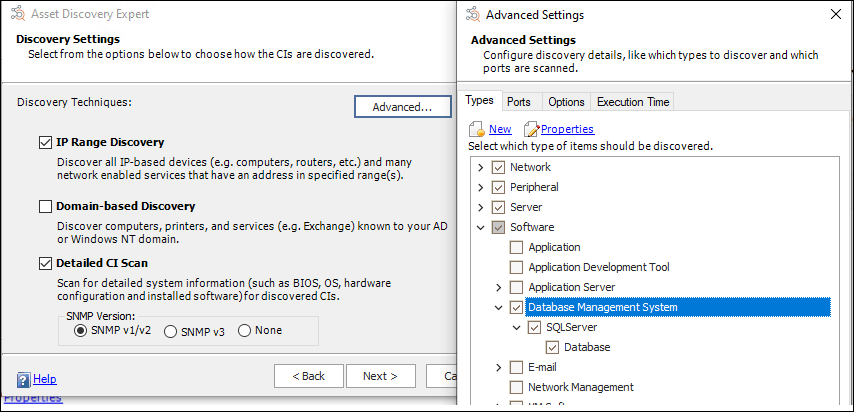
In the Advanced Settings of this profile, check the options for Software, Database Management System, and Database. Click Next.
-
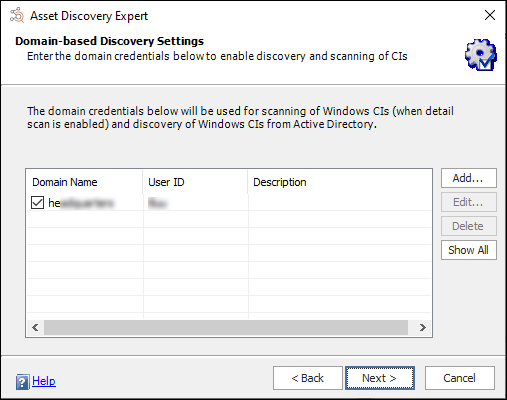
Provide the Domain user credentials. Make sure that the user has the necessary privileges to perform an in-depth scan of the SQL server you aim to scan. Click Next.
-
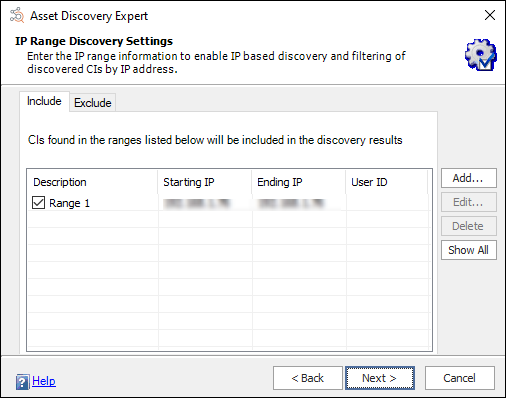
Specify the IP address range, ensuring to include the IP address of the SQL server you want to discover. Click Next.
-
Fill out the rest of the profile information according to your setup.
-
Save the configured settings and initiate the Discovery process.
-
After the discovery process finishes, check that the results include all databases on the SQL server. You can verify this in the ADT User Interface and the Profile\resources_xxx.xml file.
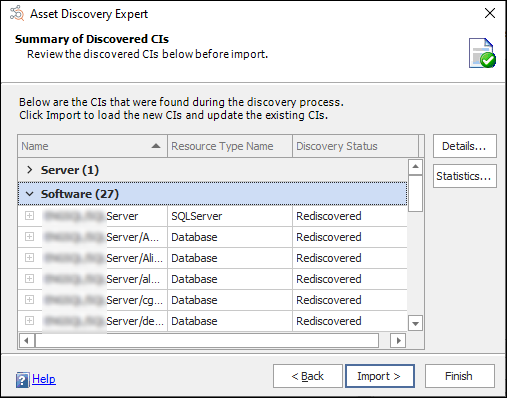
Note: Optional - Consider importing the Discovered Configuration Items (CIs) into your ChangeGear server for additional analysis or record-keeping.