Creating and Editing Data Models
Data models act as templates that define how asset data is collected, structured and displayed during asset discovery. Without a data model, asset discovery tools cannot effectively classify, gather, and store the details of assets into the CMDB. This process ensures accurate tracking, consistent classification, and seamless management of assets across your organization.
A data model consists of data groups, each containing properties specific to the resource type. The properties can vary depending on the device being scanned and the type of data being collected.
-
Navigate to Design Studio > Asset Discovery > Scan Data Models.
-
Click Add a Row
 .
. -
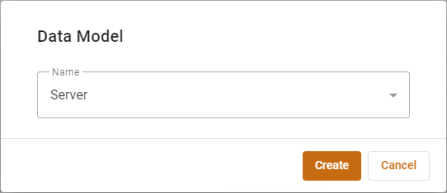
Select the resource/asset type for the model. Click Create.
-
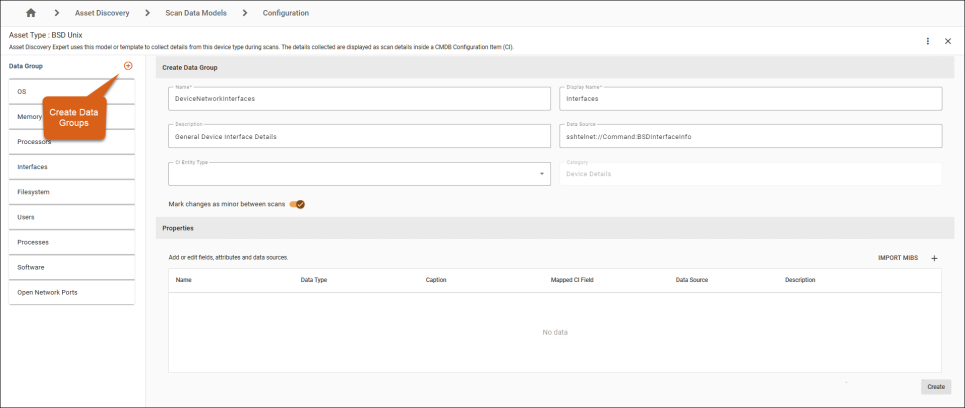
The interface displays the Data Group Editor. Here, you can create data groups and add properties to the data model, such as custom fields or data sources specific to your environment (e.g., SNMP fields for a new printer model).
Example: Creating a Data Group
-
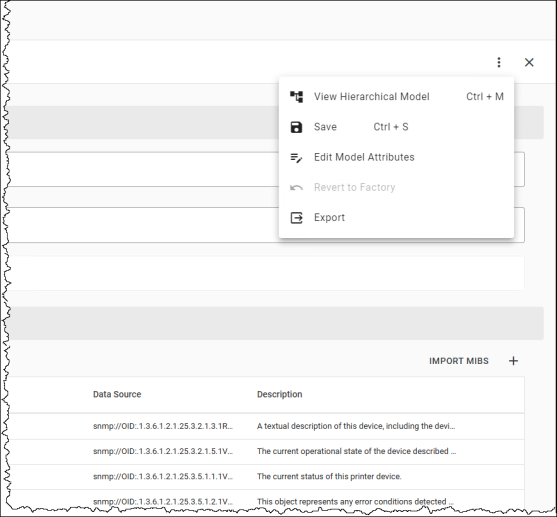
Additional options can be accessed under the three-dot menu.
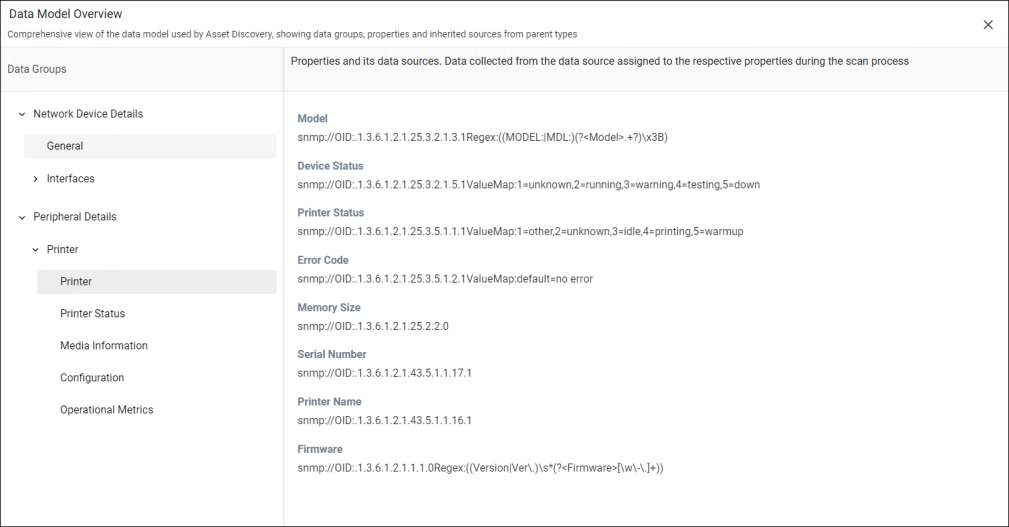
Example: Creating a Data Group
This example shows how an HP Printer is classified under Peripheral > Printer > Network. Data Groups like "Printer Status" and "Media Information" contain properties (e.g., Model, Device Status) mapped to SNMP OIDs for accurate discovery and classification.
-
Save the new data model, and it will be stored in the database.
To edit existing data models:
-
Navigate to Design Studio > Asset Discovery > Scan Data Models.
-
Double-click a resource or asset type (e.g., "HP Printer") to view it's properties in the Data Model Editor.
-
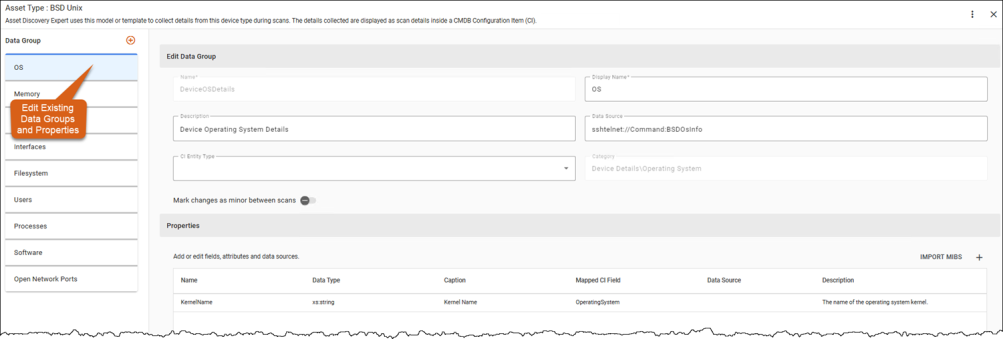
The editor displays key properties associated with each data group, including:
-
Name - The name of the property.
-
Data Type - The type of data being collected (e.g., string, duration).
-
Caption - The label used for the property in the interface.
-
Mapped CG Field - The field in the CMDB that this property maps to, as shown in the following example, a property in the data model such as Firmware can be mapped to a CMDB field Firmware. This will easily allow to search or find all devices with certain firmware information.
-
Data Source - The method or protocol (e.g., SNMP OID) used to retrieve the data for this property during scans. This enables the system to know how and where to collect information for a field. See Supported Data Sources.
-
Description - A brief description of the property.
-
-
Click Edit to modify a property.
-
Adjust fields, add new data sources (e.g., SNMP OIDs), or create new properties for custom data that is not captured by the factory schema.
-
Click Save to apply your changes.
Example: Editing a Data Group
To revert a factory data model to its original factory state
-
Open the desired data model.
-
Click the 3-dot menu and select Revert to Factory.
-
Click Save to apply your your changes.
This will discard any customizations and restore the default data model that shipped with ChangeGear.
Note: This option will still be present for custom data models, but disabled.
To delete a data model:
-
Open the desired data model.
-
Click the 3-dot menu and select Delete.
Note: You can't delete core system models or models linked to assets.
See also: