Creating and Editing Data Groups
Data groups organize related properties in a data model. A group acts as a container, categorizing properties by their function or data source.
To add a new data group:
-
Create or open a data model. See Creating and Editing Data Models.
-
Click Add Data Group +.
-
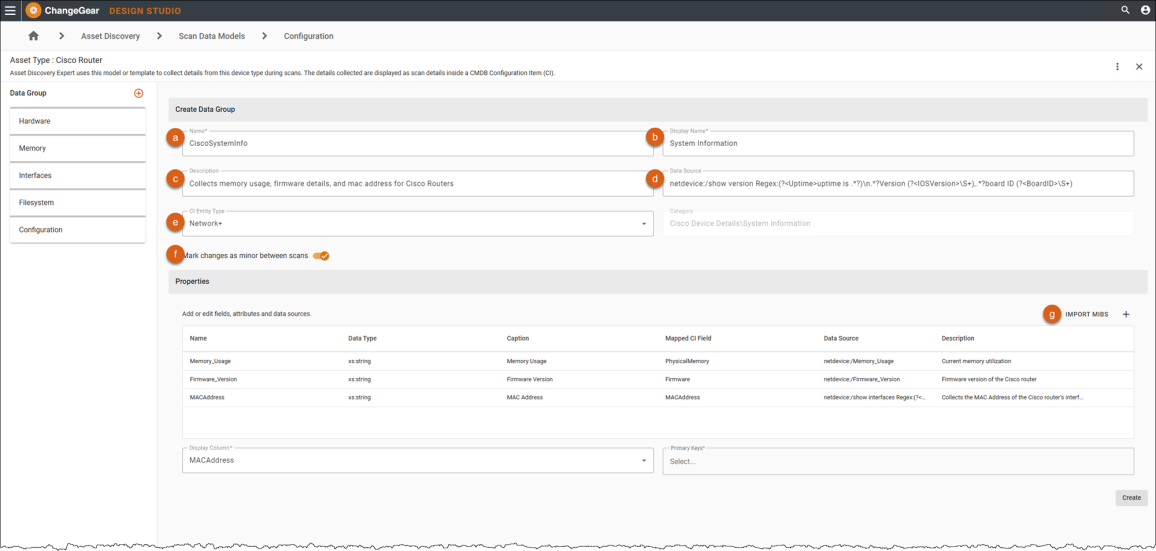
Fill out the following:
-
Name - A unique name for the group.
-
Display Name - The name that will be displayed in user-facing contexts like reports or hierarchical views.
-
Description - A brief explanation of the group’s purpose.
-
Data Source (Optional) - Specify the source protocol or method (e.g., SNMP).
-
CI Entity Type - Set which entity type in the CMDB the data group belongs to (i.e., IStorageDevice for data groups related to hard drives or other storage devices).
-
Mark Changes as Minor - Enable this option if changes in this data group’s properties must be considered as minor. For example, the uptime value constantly changes and should not trigger a major change detection between scans.
-
To add properties to the data group:
click Add Property (+) to open and complete the property configuration form. See Managing Data Group Properties.
-OR-
click Import MIBS to upload an MIB file. See MIB Importer.
-
-
Set required fields:
-
Display Column - Designates the property to represent the group in hierarchical views.
-
Primary Key - Defines the property (or properties) that uniquely identify records in this data group. This is required to ensure that records in the group are unique when data is imported or updated during scans.
Note: You must define at least one property before assigning it as the display column or primary key.
-
-
Click Create to create the data group.
To edit an existing data group:
-
Double-click an existing data model, or click Edit to open.
-
Modify fields or properties for the group.
-
Update Display Column or Primary Keys if needed.
-
Click Update to save your changes.
See also: